
How to Remove a Person from a Photo — 3 Ways (Free, No Signup)
Remove anyone from any photo in under a minute. Free step-by-step guide with before/after examples — brush sizing, undo tricks, and clean results. Works on desktop and phone.
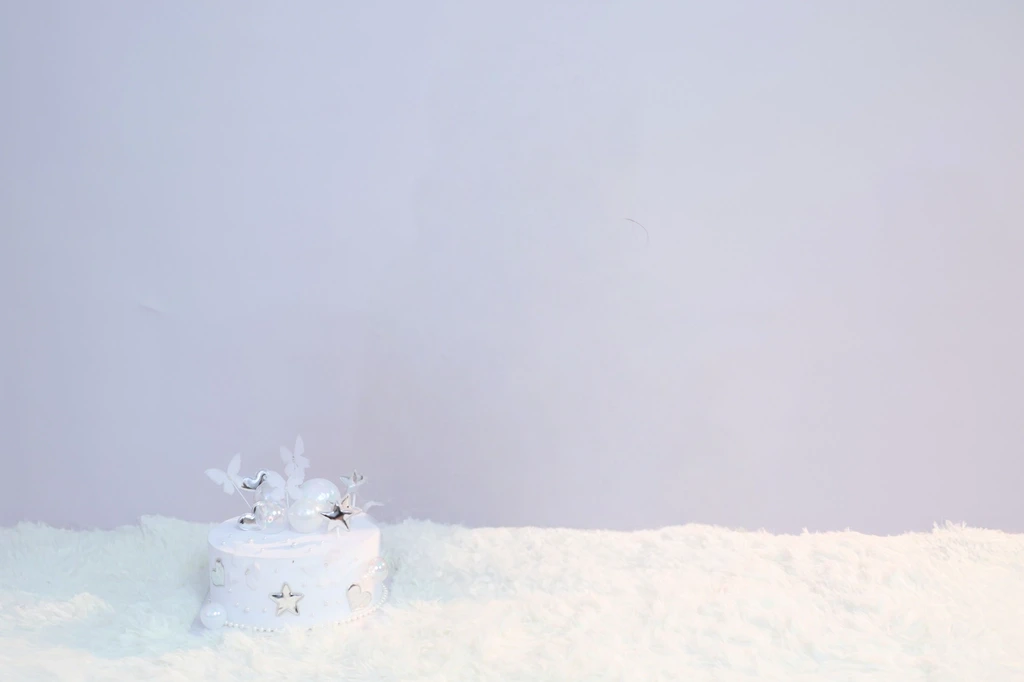
An unwanted person in an otherwise perfect photo is one of the most frustrating things to fix. A stranger walking through your vacation shot, a photobomber in a group picture, or someone you'd rather not see in the background — these used to require Photoshop and a steep learning curve to remove.
This guide walks you through removing a person from a photo in three steps, using a free browser-based AI tool. No downloads, no signup, and no watermark on the result. You open the person remover, brush over the subject, and download a clean image in under a minute.

How to remove a person from a photo in 3 steps
Step 1 — Open the tool and upload your image
Go to the person remover and upload your photo. The tool accepts JPG, PNG, and WebP files up to about 10 MB. Larger images are resized automatically so processing stays fast.
Photos are sent securely for AI processing, then cleaned up according to our storage lifecycle — they are not kept as a permanent gallery. You can use the tool on a desktop, tablet, or phone. Once the photo loads, you are ready to mark who should disappear.
Step 2 — Brush over the person you want to remove
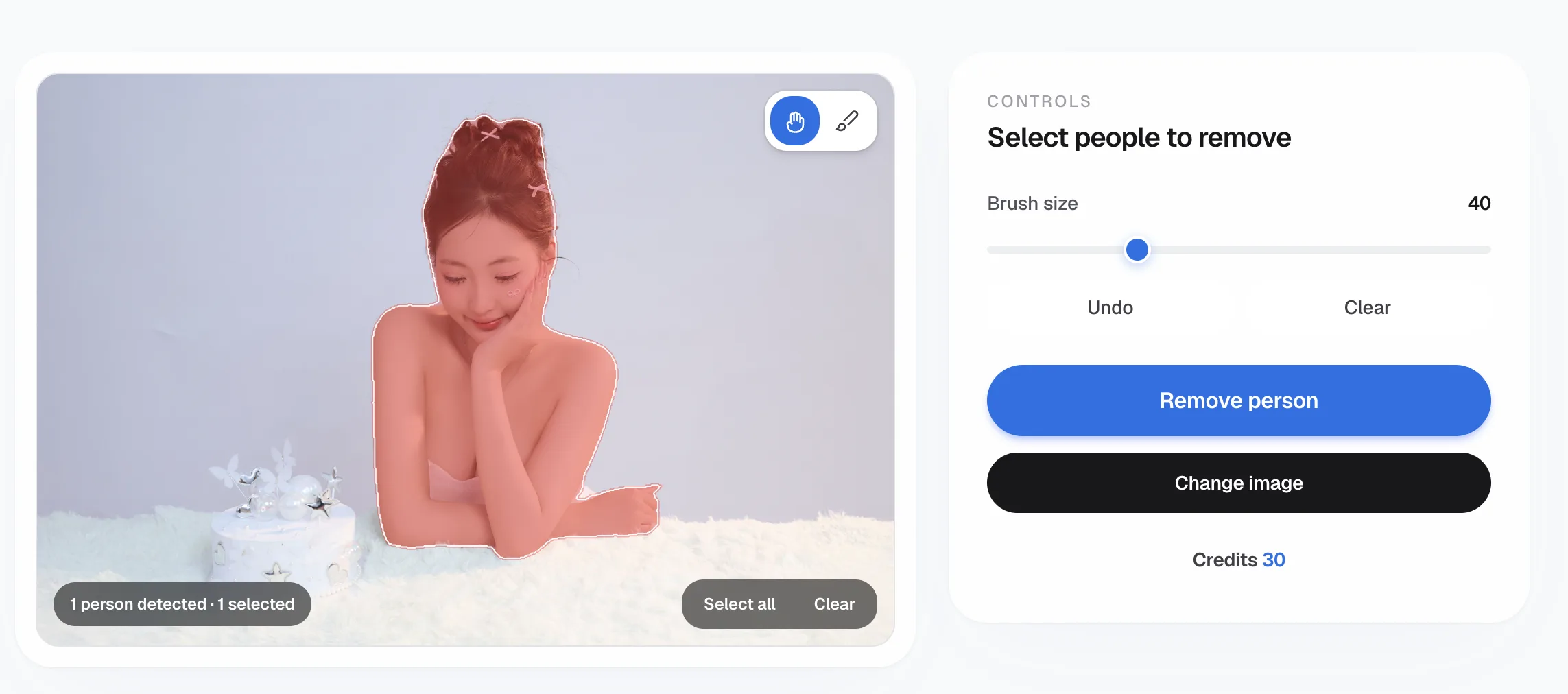
Once your image is loaded, you'll see a brush tool. Here's how to use it for the best results:
- Adjust the brush size first. Use a larger brush for big subjects (a full person in the foreground) and a smaller brush for details like hair edges or people far in the background. The brush size control is right next to the tool — slide it up or down to match the size of what you're removing.
- Brush slightly wider than the person. Don't trace the exact outline. Cover the person plus a small margin around them — the extra context helps the AI understand what the background should look like and rebuild it more naturally.
- For groups, brush one person at a time. If you're removing one person from a group photo, paint carefully around the edges where they overlap with people you want to keep. The AI handles this well, but a precise brush avoids accidentally touching the people next to them.
- Use the undo button if you over-brush. Made a mistake? Hit undo and brush again — you can undo many times while editing.
Step 3 — Download your clean image
After brushing, the AI removes the person and rebuilds the background in seconds. Check the result — if you see any smudges or artifacts, brush over that spot again. Once you're happy, hit download. The output is a clean PNG with no watermark.
That's the full workflow: upload, brush, download. Most photos take less than a minute from start to finish.
Four practical tips for cleaner removals
1. Start with the biggest distractions first
Remove the most obvious unwanted person first, then clean up smaller details. This keeps you from getting lost in tiny fixes before the main job is done.
2. Use a smaller brush for hard edges
Where the person you're removing overlaps with something you want to keep — like a building, a fence, or another person — switch to a smaller brush and paint only the person you want gone. A tighter stroke gives the AI a cleaner boundary and sharper edges.
3. Re-brush if the first pass isn't perfect
Sometimes the AI leaves a faint trace on the first attempt. Just brush the same spot again — the second pass almost always cleans it up. This is normal and not a sign that the tool failed.
4. Work on people in the background first
Background people are easier for the AI to remove because there's less detail to reconstruct. Start with them, get comfortable with the brush, then move on to foreground subjects.
The free AI tool used in this guide
The tool used in this guide is an AI person remover that works in your browser on desktop, tablet, or phone. Standard removal and Standard download are free without signing up or adding a watermark; eligible finished results can optionally be upgraded to HD.
Ready to try it yourself? Open the person remover and upload your photo.
Related reading
Wondering whether you still need Photoshop for this job? Read AI person remover vs Photoshop for a side-by-side timing and quality test.
Curious about the models behind modern cleanup tools? See Qwen Image 2.1 explained for local editing, object removal, and transparent RGBA support.
Frequently asked questions
Can I remove a person from a photo for free?
Yes. Standard removal and Standard download are free without signing up. After you see the finished result, eligible photos can be upgraded to HD with a one-time purchase.
Does removing a person from a photo leave a blank spot?
No. The AI rebuilds the background behind the removed person using the surrounding pixels. The result looks like the person was never there — sky, walls, streets, and textures are all filled in naturally.
Can I remove multiple people from the same photo?
Yes. Remove them one at a time — brush over the first person, let the AI process, then brush over the next. Each processing run is handled separately.
What if the person is overlapping with someone I want to keep?
Use a small brush to paint only the person you want gone, avoiding the person next to them. The undo button lets you retry if you accidentally brush over the wrong area.