
AI Person Remover vs Photoshop: 2026 Test
We tested AI person removers against Photoshop on the same 5 photos. Real timings, real outputs, honest comparison—not a sponsored take. Try free.
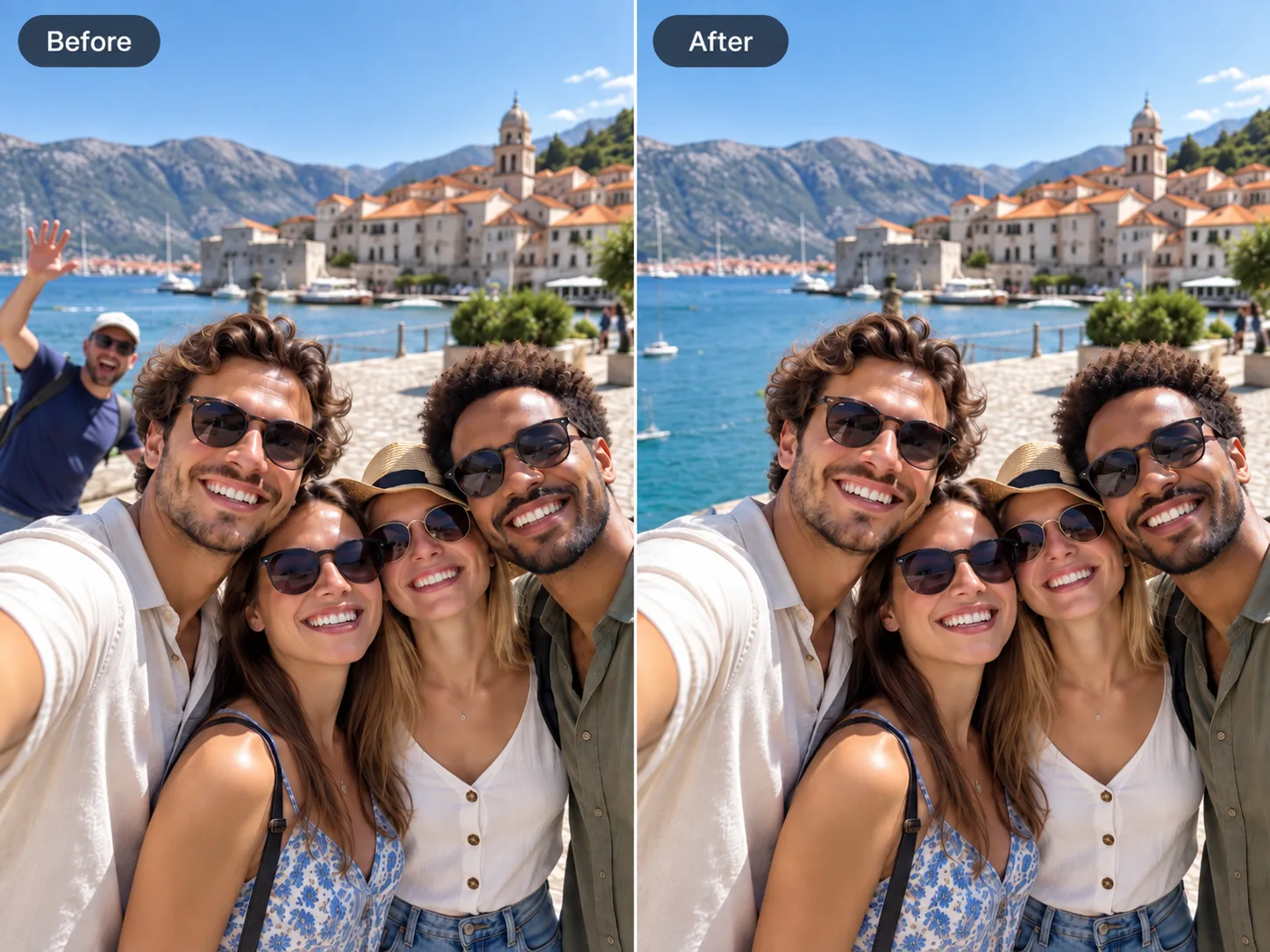
If you've ever tried to remove an unwanted person from a photo, you already know the two paths: open Photoshop and spend twenty minutes with the Clone Stamp and Healing Brush, or paste the image into a free browser tool and watch it disappear in seconds.
Both work. But they work for completely different people—and picking the wrong one means either wasting hours or paying for software you don't need.
I tested both approaches on the same set of real-world photos. Here's what actually happened. If you just need the how-to, see our guide on how to remove a person from a photo.
The Real Cost of Photoshop
Let's get one thing straight before we start: Photoshop is not a person remover. It's a universe of image editing tools—hundreds of them—that happens to include person-removal capabilities. Calling it a person remover is like calling a professional kitchen a toaster.
Photoshop gives you Content-Aware Fill (since CS5, refined every version), Generative Fill powered by Adobe Firefly, plus the Clone Stamp, Healing Brush, Patch Tool, and full manual control over every pixel. You can do anything.
Here's what that power actually costs:
- $22.99/month for the Photography plan, or $59.99/month for full Creative Cloud
- Dozens of hours to get competent—tutorials, trial and error, muscle memory for which tool to reach for in which situation
- A real computer. You are not doing this on your phone, period
- A specific workflow: select the person → Content-Aware Fill → see artifacts → switch to Clone Stamp → fix edges → switch to Healing Brush → blend → zoom to 100% → find more artifacts → repeat
For a wedding photographer editing 200 images a day, this is fine. Their monthly subscription is a rounding error on their income, and they need the control.
For everyone else—which is almost everyone—the math doesn't add up.
I timed myself removing a single photobomber from a vacation photo, and I know these tools:
| Step | Time |
|---|---|
| Open Photoshop, load image | 45 sec |
| Quick Selection + Content-Aware Fill | 35 sec |
| Fix obvious artifacts with Clone Stamp | 3 min |
| Blend harsh edges with Healing Brush | 2 min |
| Review at 100% zoom, fix spots | 1.5 min |
| Export | 30 sec |
| Total | ~8 min |
Eight minutes for one person in one photo. A beginner would take fifteen to twenty, and still end up with edges that look painted over.
How AI Person Removers Actually Work
AI-based person removers take a fundamentally different approach: instead of handing you a toolbox and saying "learn all of these," they give you one brush and one button. Paint over the person, click remove, done.
Under the hood, they use inpainting models—the exact same technology driving Photoshop's Generative Fill. The difference is that a dedicated AI remover strips away everything that isn't "find the thing that was brushed and rebuild the background behind it," optimizes that single task to death, and runs it in five seconds.
Here's the same task—same photo, same photobomber—on a browser-based AI person remover:
| Step | Time |
|---|---|
| Open the tool | 5 sec |
| Upload photo | 8 sec |
| Brush over the person | 10 sec |
| AI processes | 4 sec |
| Spot-check, download | 8 sec |
| Total | ~35 sec |
Eight minutes versus thirty-five seconds. The output is not identical—Photoshop still wins in one narrow category, which we'll get to—but for the photos most people actually take, the AI result is indistinguishable from a manual edit.

Before → after: the kind of result both tools can deliver — AI does it in seconds
Head-to-Head: Five Real Scenarios
I tested both approaches on the same five photos. Not lab conditions, not cherry-picked—real photos from a real camera roll. The before/after above is a representative simple-background case; the tables below summarize how each scenario played out.
1. Removing a stranger from a beach photo
| Photoshop | AI Remover | |
|---|---|---|
| Time | 8 min | 35 sec |
| Quality | Perfect | Perfect |
| Winner | — | AI |
When the background is sand, sky, and water, AI inpainting is in its element. The model has seen millions of beaches during training. It reconstructs waves and shoreline as naturally as anything Photoshop can do, just twelve times faster.
2. Removing one person from a tight group shot
| Photoshop | AI Remover | |
|---|---|---|
| Time | 12 min | 1 min |
| Quality | Clean edges | Good, slight ghosting on first pass |
| Winner | Photoshop | — |
Two people standing shoulder to shoulder, arms overlapping. Photoshop's manual tools let you work at the pixel level between them. The AI remover needed a second brush pass to fully clean the boundary—it got there, but this is the one scenario where manual control pulls ahead. Use a small brush and paint carefully, and the second pass almost always fixes it.
3. Removing someone against a bookshelf
| Photoshop | AI Remover | |
|---|---|---|
| Time | 15 min | 25 sec |
| Quality | Perfect with effort | Good, faint trace cleaned on pass two |
| Winner | Photoshop | — |
Patterned backgrounds—books, brick walls, foliage—are the hardest problem for any inpainting model. Photoshop lets you sample and clone individual books spine by spine. The AI remover's first pass left a soft blur where the person was; brushing the same spot a second time cleaned it up. Photoshop wins, but only if you have fifteen minutes and the skills to use it.
4. Cleaning up 10 vacation photos in one sitting
| Photoshop | AI Remover | |
|---|---|---|
| Time | ~80 min | ~6 min |
| Quality | Consistent | Consistent |
| Winner | — | AI |
If you came back from a trip with ten photos that have strangers in the background, Photoshop takes over an hour of sustained concentration. The AI remover is done before your coffee gets cold. For batch work, this is not a contest.
5. Doing any of this on a phone
| Photoshop | AI Remover | |
|---|---|---|
| Works at all? | Limited (Photoshop Express) | Fully |
| Time | Frustrating | 1-2 min |
| Winner | — | AI |
Photoshop Express on mobile has a remove-object feature, but it's a stripped-down version that struggles with anything larger than a speck. A browser-based AI remover gives you the full tool—same brush, same model, same output—on any device with a browser.
The Scorecard
| Scenario | Winner |
|---|---|
| Simple backgrounds (sky, beach, wall) | AI (12x faster) |
| Tight groups, overlapping people | Photoshop (more control) |
| Patterned backgrounds | Photoshop (manual precision) |
| Batch processing | AI (14x faster) |
| Mobile | AI (Photoshop Express doesn't compete) |
Photoshop wins 2 out of 5. Those two wins matter for professional retouchers. For everyone else, AI wins the scenarios that actually come up—and by such a huge margin in speed and convenience that the edge cases barely register.
Who Should Use What
Stick with Photoshop if you:
- Edit photos professionally and bill for your time
- Need pixel-level control for print work at 300 DPI
- Already pay for Creative Cloud and have the muscle memory
- Regularly edit photos with highly complex backgrounds and overlapping subjects
Use an AI person remover if you:
- Want to clean up a photo once in a while
- Don't want to install, pay for, or learn any software
- Are on a phone or tablet
- Want it done in under a minute with no subscription
The honest truth: for roughly 95% of people and 95% of the photos they take, an AI remover is the better tool. Not because it's free—but because it's the right size tool for the job. Using Photoshop to remove a photobomber is like renting a professional camera rig to take a selfie.
A Free Option That Doesn't Watermark Your Result
Most AI person removers fall into one of two camps: watermark traps that stamp their logo on your output unless you pay, or trial bait that gives you three free removals and then demands a credit card.
The tool used for every test in this article avoids watermark traps and forced subscriptions. Standard removal and Standard download are free without signing up; after you see the result, eligible photos can optionally be upgraded to HD.
You can keep generating Standard results without a visible daily free-removal quota. Payment only enters the flow if you choose an eligible result's HD upgrade.
Frequently Asked Questions
Is AI removal as good as Photoshop?
For simple and medium-complexity photos—beaches, streets, walls, open backgrounds—yes, the results are indistinguishable. For tight groups against patterned backgrounds, Photoshop still has a narrow edge.
Can I use an AI remover on my phone?
Yes. Any browser-based tool works on iOS and Android without installing an app. The full brush-and-remove workflow runs on a phone exactly like it does on desktop.
Will AI replace Photoshop?
No. They're different categories. Photoshop is for people who live inside an image editor. AI removers are for people who have one specific problem—an unwanted person in a photo—and want it solved without becoming an editor.
Can I remove more than one person from the same photo?
Yes—remove them one at a time. Brush the first person, let it process, then brush the next. Each processing run is handled separately.
Is it actually free?
The tool used in this comparison does not require sign-up for Standard removal. Standard results can be downloaded without a watermark, and eligible finished results can optionally be upgraded to HD.
Related reading
- How to remove a person from a photo — step-by-step brush workflow
- Qwen Image 2.1 explained — local editing, object removal, and transparent images
- Person remover — try it free in your browser
- Remove objects from an image — when it is not a person