
Remove Object from Image Online
Brush out power lines, watermarks, text, or any unwanted object — the AI rebuilds the background in seconds. Free HD result with a PersonRemover watermark.
Free HD with watermark · $1.99 no-watermark unlock · No subscription

Before / After
Brush out any unwanted object
Step 1
Upload your image
See it disappear

TLDR
A free AI object remover that erases anything you brush over — power lines, watermarks, text, trash, or random clutter — and rebuilds the background behind it. Upload an image, brush the object, and download an HD result with a PersonRemover watermark; remove that watermark with a one-time unlock.
Why remove objects from your images?
Great photos get ruined by small things. Power lines cut across a perfect sunset. A watermark sits where it doesn't belong. A trash can or a parked car breaks the clean lines of your shot. In the past, fixing these meant opening Photoshop, learning the clone stamp tool, and spending twenty minutes on one photo.
An AI object remover changes that. You brush over the object once, and the tool analyzes the surrounding pixels, removes the object, and rebuilds the background behind it — sky, walls, streets, and textures fill back in naturally. What used to take twenty minutes in Photoshop now takes five seconds in your browser.
This page is a free online object remover built for that job. Upload an image, brush the unwanted area, and the AI processes it to rebuild the background. The free HD result includes a PersonRemover watermark; a one-time unlock removes it. No desktop software is required.
How to remove an object from an image in 3 steps
1
Step 1 — Upload your image
Drag and drop a JPG or PNG, or click to browse. The tool works in your browser, so the photo never has to leave your device.
2
Step 2 — Brush over the object
Paint over the power line, watermark, text, or anything else you want gone. Adjust the brush size for small details or large areas.
3
Step 3 — Download the clean image
The AI removes the object and rebuilds the background. If the result isn't perfect, brush the spot again. The free HD download includes a PersonRemover watermark, with a one-time no-watermark unlock available.
What can you remove?
Watermark
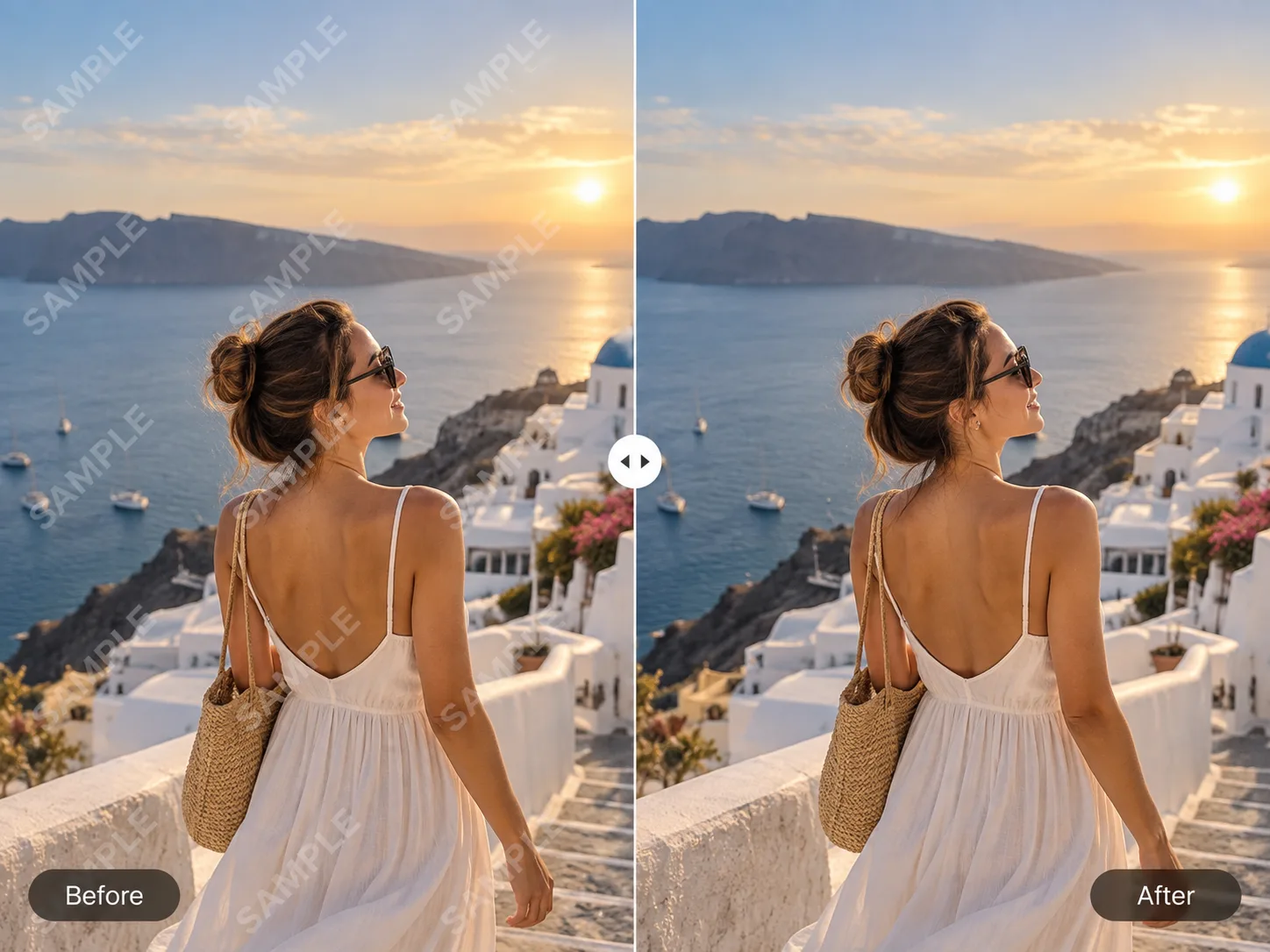
Erase logos, signatures, and stamps from any image. Brush over the mark once and the AI fills the background behind it.
Text
Remove captions, labels, dates, and stickers from photos. The surrounding pixels rebuild so the area looks untouched.
AI Text RemoverPower lines
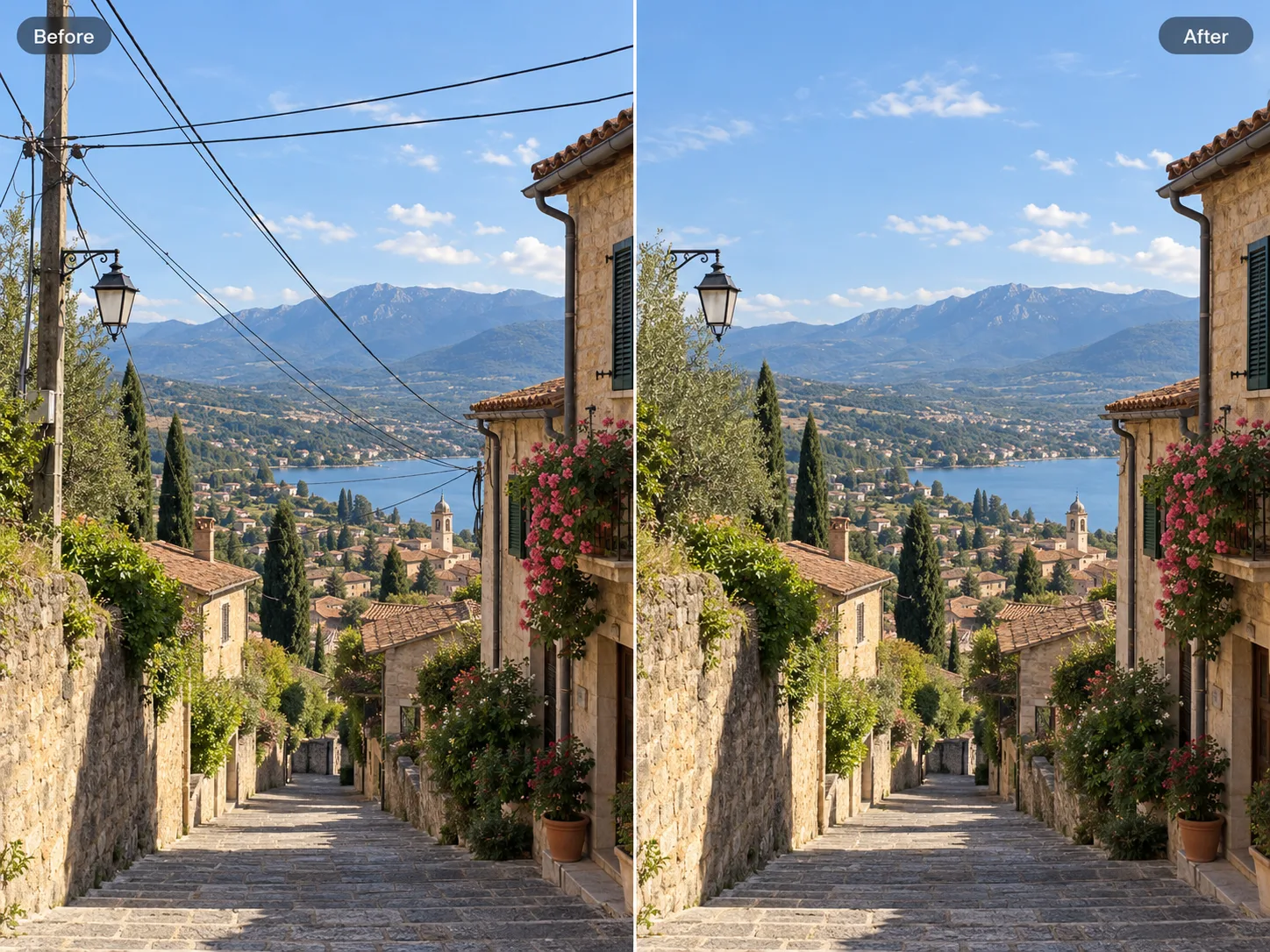
Clean cables and wires out of skies and cityscapes. The AI extends the sky and buildings behind the wire for a natural result.
Trash & clutter
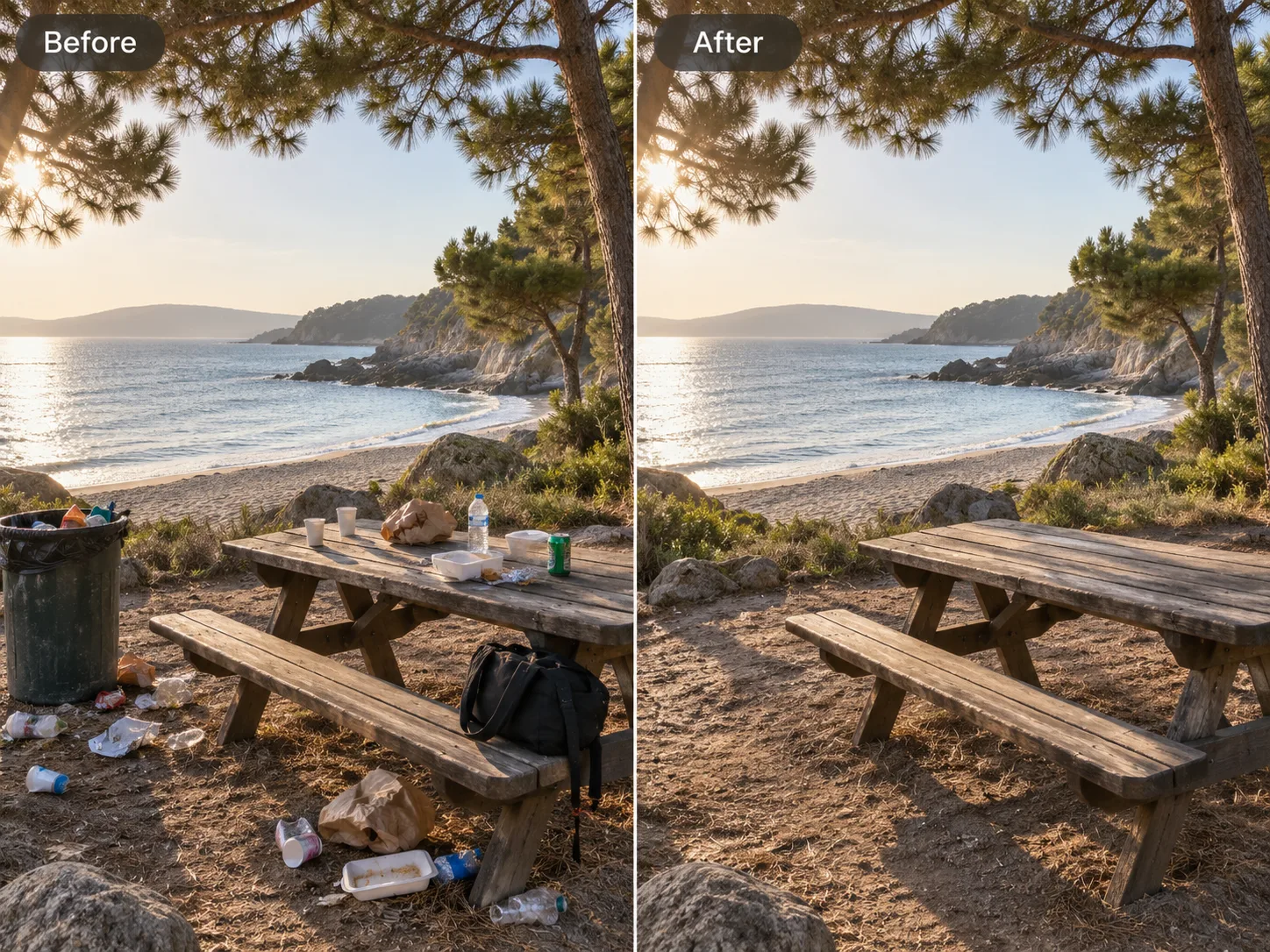
Clear garbage cans, signs, and random objects from street shots. Street textures, walls, and pavement fill back in cleanly.
Cars
Take parked cars out of driveways and streets for cleaner real-estate photos. Ideal for listings where an empty driveway sells the home better.
Cables & gear
Remove tripods, microphone booms, and other gear from your shots. Clean up production photos without reshooting the scene.
Stickers & Emoji
Erase digital stickers, emoji reactions, chat bubbles, and overlay graphics. Brush the sticker and the AI rebuilds the photo or screenshot underneath.
Stickers & EmojiTips for cleaner removals
Brush slightly wider than the object
Cover the object plus a small margin so the AI has context to rebuild the background.
Remove small objects first
Multiple passes on small objects give cleaner results than one big brush stroke across a scene.
Zoom in for edges
For text and thin lines, zoom in and use a smaller brush for sharper results.
Retry the same spot
If the first pass leaves a smudge, brush it again; the second pass usually cleans it up.
Work on a copy
Duplicate your image first, so you always have the original to fall back on if a removal doesn't go as planned.
Remove in short strokes
For long objects like power lines, brush them out in short segments instead of one long stroke — you'll get cleaner edges and fewer smudges.
Honest limits
Tiny objects on busy backgrounds
When an object is a few pixels wide and the background is full of texture, the AI may leave a faint trace. A second brush pass usually fixes it.
Large areas
Removing an object that covers half the image is possible, but the rebuilt area may look softer than the original. This tool shines on small-to-medium objects.
Low-resolution details
Blurry photos give the AI less to work with; sharp, high-resolution images remove more cleanly.
FAQ
Questions & answers
Ready to erase an object?
Upload an image, brush what you want gone, and download a clean result.
Upload an Image