
Date stamps
Clear camera or phone date/time burned into a corner. Small stamps on simple backgrounds usually clean up well.
Upload an image and AI automatically finds and removes visible text, captions, dates, labels, and other words while rebuilding the background. No brushing required.
Automatic text removal · No watermark · No credit card · 2 free edits a day, plus 2 more when you sign in


AI text removal
Free today 2/2

TLDR
Upload a JPG, PNG, or WebP file and run the AI eraser. The model looks for visible words—captions, dates, labels, subtitles, signs, numbers, and simple text watermarks—then rebuilds the background behind them. No desktop editor and no manual brush mask. Download a clean PNG when the result looks right. Avoid uploading images you do not have permission to edit.
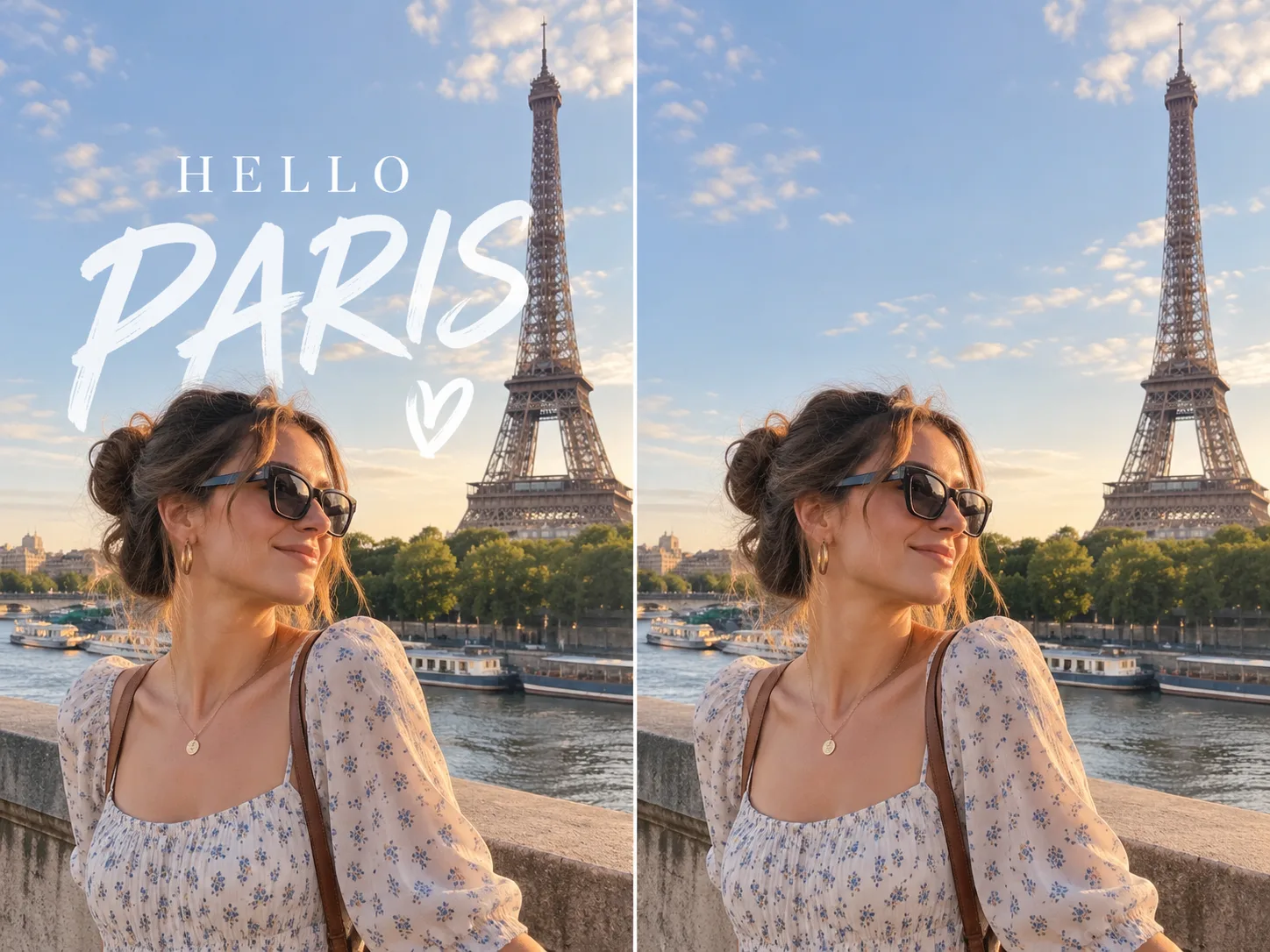
Useful photos often get blocked by a date stamp, an old caption, a wrong price, a social overlay, or other baked-in words. Cropping can hide text near an edge but changes the composition. Blurring hides letters yet leaves an obvious patch. An automatic text remover keeps the framing and reconstructs the covered area instead.
Unlike a flat paint-over, the model estimates what should sit behind the letters from nearby pixels. Plain sky or wall fills are usually simple; brick, fabric, foliage, or detailed product shots need a more careful reconstruction, so results vary by background.
This page is built for text-shaped content. You upload once and the eraser scans the whole image—there is no brush step and no person auto-detect on this tool. That keeps the workflow short when you only need words gone, not people or random objects selected.
Very dense overlays, tiny type on noisy backgrounds, or text sitting on faces and logos are harder. If a faint trace remains, run the cleaned result again or try a higher-resolution original. The model invents plausible texture; it cannot recover the true hidden pixels.
The browser prepares your upload, then the request goes to the site backend and AI provider. Original and result URLs are stored for the existing removal-history flow, so this page does not claim on-device-only processing. Skip sensitive material you would not want sent to an online editing service.
1
Start with a JPG, PNG, or WebP file up to about 10 MB. Drag it into the upload area or click to choose it. Keep an untouched copy if you need an archival original—processing may resize very large files.
2
Click to send the full image to the AI text eraser. The model finds visible words and generates a new image with those regions filled in from surrounding context—no manual mask required.
3
Compare before and after, then download the cleaned PNG. If a faint mark remains, upload the result for a second pass rather than starting from a heavily compressed screenshot.
Clear camera or phone date/time burned into a corner. Small stamps on simple backgrounds usually clean up well.
Refresh product shots by removing outdated prices, promo callouts, or sticker text before reuse.
Clean screenshots and frames that have baked-in captions, usernames, or social overlays without cropping the scene.
Simple letter watermarks can be erased when you own the image or have permission to edit it. Removing a mark does not grant copyright.
Reduce distracting storefront or poster lettering in a scene. Busy sign textures may need a second pass.
Hide serials, order codes, or timestamps before sharing. AI fill is not a substitute for security-grade redaction.
Sharper originals give the model more edge and texture cues, so reconstructed areas look less soft.
Sky, walls, and solid surfaces reconstruct more reliably than patterned fabric, hair, or dense foliage.
Heavy JPEG artifacts around letters make detection and fill harder. Re-export from the source when you can.
If a ghost outline remains, run the cleaned PNG through another pass instead of stacking more compression.
For wires, clutter, cars, or other non-text distractions, use Object Remover. For people, use Person Remover.
AI reconstruction changes pixels and can invent texture. Do not replace an important source image with the edit by accident.
Letters on faces, hair, logos, or intricate products are hard. The model invents a fill; it cannot restore the true hidden detail.
When words cover much of the frame, there is less context to borrow from. Dense posters or full-frame captions may leave soft or uneven areas.
Tiny, blurry, or heavily compressed files give weaker cues. Removals can look softer or miss thin strokes.
Very faint, artistic, or camouflaged lettering may be missed or only partly cleared. A second pass on the result often helps.
FAQ
Upload a photo, run automatic removal, and download the cleaned result.
Upload an Image