

PersonRemoverPersonRemover
Sign up

AI Image Enhancer — Enhance Photo Quality Online Free

One-click AI image enhancer that sharpens blurry photos, improves resolution and detail, and keeps faces natural. Upload a photo, enhance automatically, then compare Before and After.

Free to start · No signup required · No watermark · HD download · 2 free edits a day, plus 2 more when you sign in

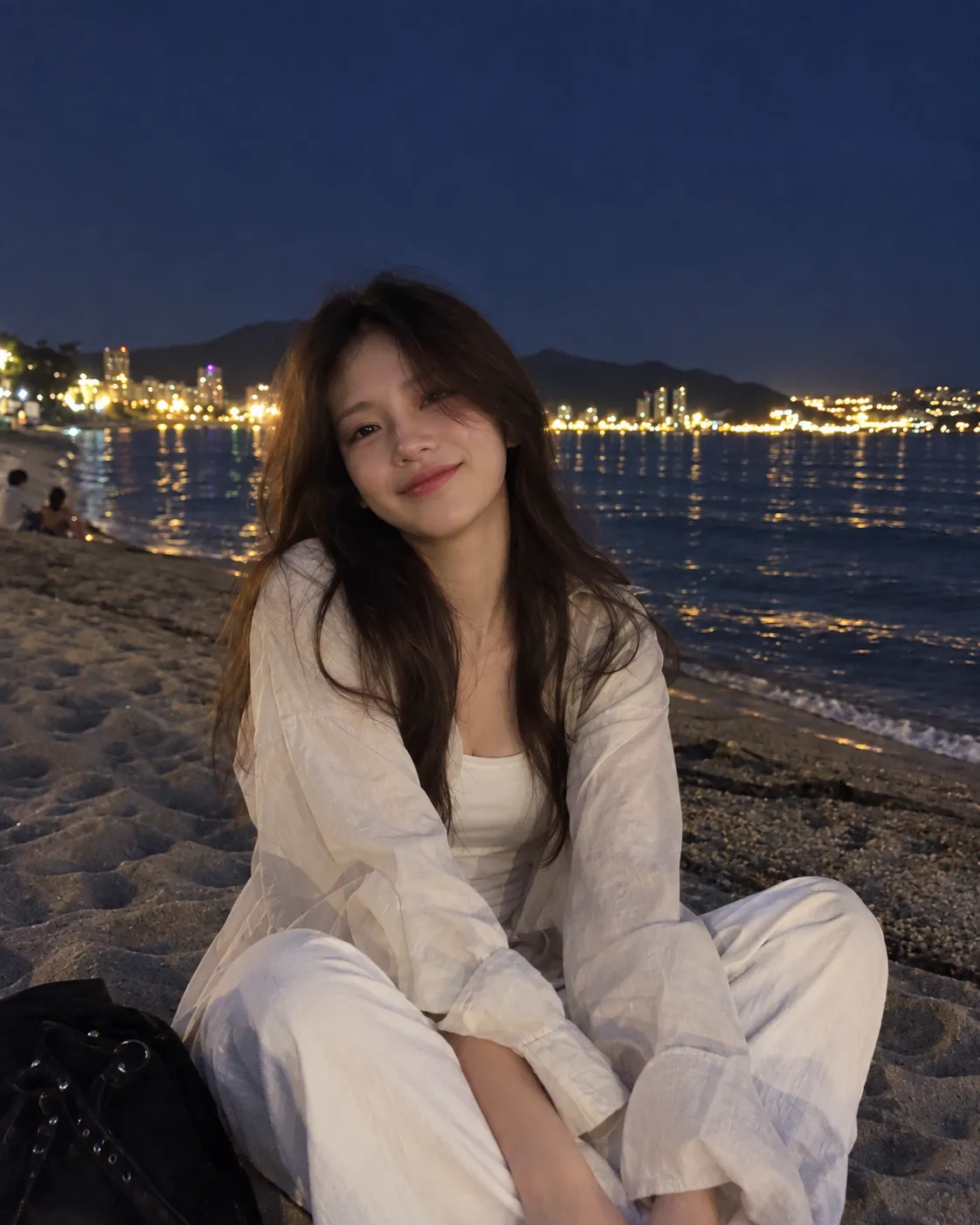
Blurry portrait before AI enhancementSharper portrait after AI enhancement

AI image enhancer

Upload an Image

Drop your image here, or click to uploadJPG, PNG, or WEBP · up to 20MB

Free today 2/2

TL;DR

A free photo enhancer that fixes three of the most common problems that ruin otherwise good photos: blur, low resolution, and noise. Upload an image, click once, compare the before and after result, and download a cleaner, sharper version. No mode selection, no watermark, and no credit card required to start.

Why photos lose quality

Most photos do not look bad because the camera itself is bad. Quality usually drops because of missed focus, camera movement, heavy JPEG compression, poor lighting, or an original file that is simply too small. A phone can capture a good scene and still produce a soft image when the subject moves or the light is weak. Images downloaded from social networks can also lose detail after repeated compression.

Normal resizing does not solve this problem. It stretches the pixels already present in the file. The dimensions become larger, but edges, hair, skin texture, fabric, and small objects do not become genuinely clearer. The photo often ends up bigger and softer at the same time.

How AI enhancement works

An AI image enhancer works differently from a basic resize. Instead of only interpolating pixels, the model analyzes patterns in the source image and reconstructs plausible edges and detail. That can improve facial features, hair strands, object borders, local contrast, and fine texture while the image is enlarged.

The result can look sharper while staying more natural than a conventional resize. The important limitation is that AI is estimating detail, not traveling back in time to recover information the camera never captured. A slightly soft face may improve dramatically; a face reduced to a handful of blurred pixels cannot be restored exactly.

One editor for enhancement and cleanup

This enhancer is part of the same photo editing toolkit as our person remover and object remover. Start by improving the source image, then clean up distracting elements without leaving the site.

That matters for old family photos, travel shots, product images, and AI-generated artwork. Enhancement improves the source quality first; removal tools handle unwanted people, objects, logos, labels, or visible text afterward.

How to enhance image quality in 3 steps

1

Upload your image

Choose a JPG, PNG, or WebP file up to 20MB. For the best result, use the original photo rather than a screenshot or repeatedly compressed copy.

2

Enhance automatically

Click Enhance Image. There are no modes to configure. The default AI enhancement improves sharpness, resolution, and facial detail automatically.

3

Compare and download

Toggle Before and After on the result. Inspect faces, edges, hair, and detailed textures, then download the enhanced image.

What you can improve

Blurry & out-of-focus photos

Improve mild missed focus, camera shake, compression softness, and soft edges.

Low-resolution images

Enlarge small images while reconstructing detail instead of simply stretching the same pixels.

Noise & grain

Reduce the distracting look of night photos, older phone shots, high-ISO images, and compressed shadows.

Old & scanned photos

Improve edge definition and overall clarity in family photos, scans, and archived images.

AI-generated images

Clean up soft edges and low-detail output from image generation tools before publishing or printing.

Product photos

Improve marketplace and store images for Shopify, Etsy, eBay, catalogs, and social ads.

Enhance product photos for ecommerce

Product photography often starts with imperfect source files: a slightly soft smartphone photo, a compressed supplier image, a noisy indoor shot, or a picture that has already been resized several times. Enhancement can make those assets cleaner before you crop them into marketplace formats or publish them to a store.

Cleaner edges and stronger detail are especially useful for clothing, jewelry, electronics, furniture, handmade products, collectibles, and other listings where shoppers zoom in before buying. Enhancement cannot replace proper photography, but it can help you get more usable results from the source files you already have.

Tips for better results

Always start from the original file

A screenshot of a photo has already lost detail and may contain extra compression. Use the original camera or exported file whenever possible.

Compare at 100% zoom

A full-page view can hide halos, artificial texture, and oversharpening. Zoom in on the important parts before you download.

Upscale once

Repeated cycles of enhance, export, compress, and enhance again can soften an image quickly. Start from the best source and process it once.

Go easy on faces

More sharpening is not always better. Faces can look plastic when they are pushed too hard, so a natural result matters more than maximum crispness.

Honest limits

It cannot invent exact detail that is not there

A heavily blurred face remains an approximation. No enhancer can know exactly what a feature looked like if the camera never captured it.

Very small text rarely becomes fully readable

Enhancement may improve contrast in screenshots and documents, but it cannot reliably reconstruct characters when the original letters contain too few pixels.

FAQ

Frequently Asked Questions

How do I enhance image quality for free?

Upload a JPG, PNG, or WebP image, click Enhance Image, and download the result. The tool is free to start with 2 edits per day, plus 2 more when you sign in. No credit card is required and downloads have no watermark.

Does it work on blurry photos?

Yes. Mild out-of-focus blur, compression softness, weak detail, and small amounts of motion blur can often be improved. Heavily blurred details may remain approximate because the original camera never captured enough information to restore them exactly.

Can it upscale an image?

Yes. The default enhancement uses AI upscaling together with detail reconstruction. It makes the image larger while attempting to preserve edges, faces, hair, fabric, and other fine structure better than a normal resize.

Is there a watermark or signup requirement?

No watermark is added to the enhanced image, and no account is required to try the tool. Signing in only gives additional free daily edits.

What's the difference between enhancing and upscaling?

Enhancing improves visible quality such as sharpness, local detail, and facial clarity. Upscaling increases the pixel dimensions. The default workflow combines both so you do not need to choose a mode.

Can it also remove people, objects, or text from a photo?

Yes. PersonRemover also includes dedicated tools for removing people, unwanted objects, and text from photos after you enhance the source image.